VS Notepad: a standalone Notepad powered by VS Code
Notepad++ is a popular text editor: tabs, syntax highlighting, powerful search, and extensions make it much more capable than Windows Notepad. If you already use Visual Studio Code for development, you can also turn it into a great everyday text editor.
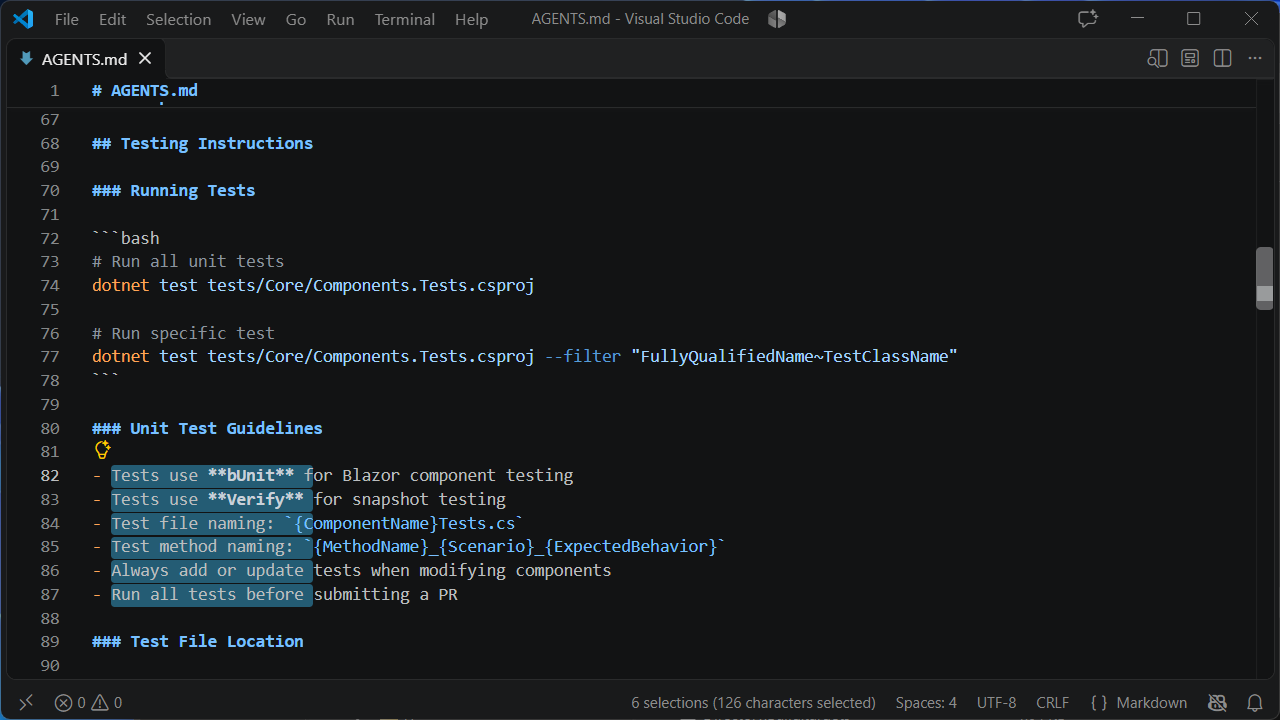
The Install-VSNotepad script downloads a standalone copy of VS Code and configures it with a cleaner interface designed for taking notes and editing files. This installation is independent of any VS Code already on your computer: it has its own installation folder and its own portable data folder.
Download and install
Download the Install-VSNotepad.zip archive and extract it. It contains Install-VSNotepad.ps1.
Open PowerShell in the extracted folder and run the script:
.\Install-VSNotepad.ps1
The script lets you choose an installation folder. By default, it installs VS Notepad in %LOCALAPPDATA%\Programs\VSNotepad. It downloads the latest stable VS Code release from the official update service, automatically selecting the x64 or ARM64 architecture.
The installation creates a Start menu shortcut and adds the PowerShell function note. Open a new terminal, then launch the editor with a file:
note .\notes.txt
You can also start VS Notepad from the Start menu without opening a terminal.
Associate .txt files with VS Notepad
The script does not automatically associate files with VS Notepad. To make Windows always open .txt files with this editor, right-click a .txt file and choose Open with > Choose another app. If VS Notepad is not listed, choose the option to select an app on your PC and browse to Code.exe in the installation folder (default: %LOCALAPPDATA%\Programs\VSNotepad\Code.exe). Check Always use this app to open .txt files, then confirm.
You can also set the default app in Windows Settings > Apps > Default apps: search for .txt, then select VS Notepad. Depending on your Windows version, you may need to browse to the installation folder to select Code.exe.
The -ContextMenu option only adds an Open with VS Notepad command to the context menu; it does not change the default app for .txt files.
A truly separate installation
VS Notepad is a portable VS Code build. Its data folder contains its settings, extensions, and session data; they are not shared with another VS Code installation. The script preserves this folder when updating by running the installer again with the same destination.
The initial settings hide interface elements that are less useful in a text editor, enable word wrap and automatic encoding detection, and preserve tabs and the session when the app closes. Git, extension auto-updates, and VS Code updates are disabled in this installation. The script does not add anything to Windows startup or automatically associate any files.
Note: the script also disables VS Code’s Workspace Trust feature. Do not use this instance to open folders or projects from sources you do not trust.
Installation options
Add options to the script command. For example:
.\Install-VSNotepad.ps1 -Destination "D:\Tools\VSNotepad" -DesktopShortcut -ContextMenu
| Option | Description |
|---|---|
-Destination <path> |
Installation folder. If it already contains this VS Code installation, the script updates it while preserving data. |
-CommandName <name> |
Name of the PowerShell function added to your profile. Default: note. |
-ShortcutName <name> |
Name used for shortcuts and the context-menu entry. Default: VS Notepad. |
-Icon <path> |
Shortcut icon, as file.ico or file.exe,index. |
-DesktopShortcut |
Also creates a Desktop shortcut. |
-ContextMenu |
Adds Open with VS Notepad to the file context menu. This entry is registered for the current user. |
-NoProfileFunction |
Does not add the note function to your PowerShell profile. |
-ResetSettings |
Replaces existing settings with the default configuration. A backup copy is created first. |
For example, to install in a specific folder, create a Desktop shortcut, and use a function named notepad:
.\Install-VSNotepad.ps1 `
    -Destination "D:\Tools\VSNotepad" `
    -DesktopShortcut `
    -CommandName notepad
Then, in a new terminal:
notepad .\todo.md
Update and uninstall
To update VS Notepad, run the same script again with the same destination folder. The application files are replaced, but the data folder is preserved.
To remove the installation and the items created by the script, run:
.\Install-VSNotepad.ps1 -Uninstall
Uninstalling removes the shortcut, the PowerShell profile function, the context-menu entry, and the installation folder. That folder also contains your settings, extensions, and unsaved tabs. To keep them, use -KeepData:
.\Install-VSNotepad.ps1 -Uninstall -KeepData
Add -Destination "D:\Tools\VSNotepad" to specify the folder to remove, and -Force to skip the confirmation prompt. Close VS Notepad first; uninstalling stops if this copy is still running.
Resources
| Resource | Link |
|---|---|
| Download | Install-VSNotepad.zip |
| Visual Studio Code | https://code.visualstudio.com |